

Author visionOS
Author for visionOS is designed as an extension of Author for Mac, not a replacement. Working here can be as simple as working on your document in a traditional way in the ‘Write’ mode, or expanded into your space in ‘Map’ mode.
This is just the start of working with knowledge objects spatially, this is just the start of beginning to understand what tools can make possible. We will keep refining and extending Author’s Map view as we better understand the potential of this powerful new media and we invite you to join us to experiment to experience what the future of working with knowledge in spatial environments can be.
Spatial Reasoning with Defined Concepts
A key reason to work in a headset with Author is to use the space itself for reasoning. In Author you reason with ‘Defined Concepts’.
A ‘concept’ here is not only an abstract idea. It is any element of knowledge in your work: a person or a place, an issue or an institution, a product or an event. The word itself comes from the Latin concipere, ‘to grasp, to take together’. A concept is something you have grasped and that is how it is used in Author.
You can define concepts on Mac or in Vision Pro, and the act of defining is itself part of thinking: it clarifies what you understand and reveals what you still need to think about or learn more about.
Your Defined Concepts can extend into the space around you as a ‘map’ of your knowledge, where you can see how things connect, relate and what might be missing.
But first, the most basic interaction: the traditional document, in Write mode.
Write Mode
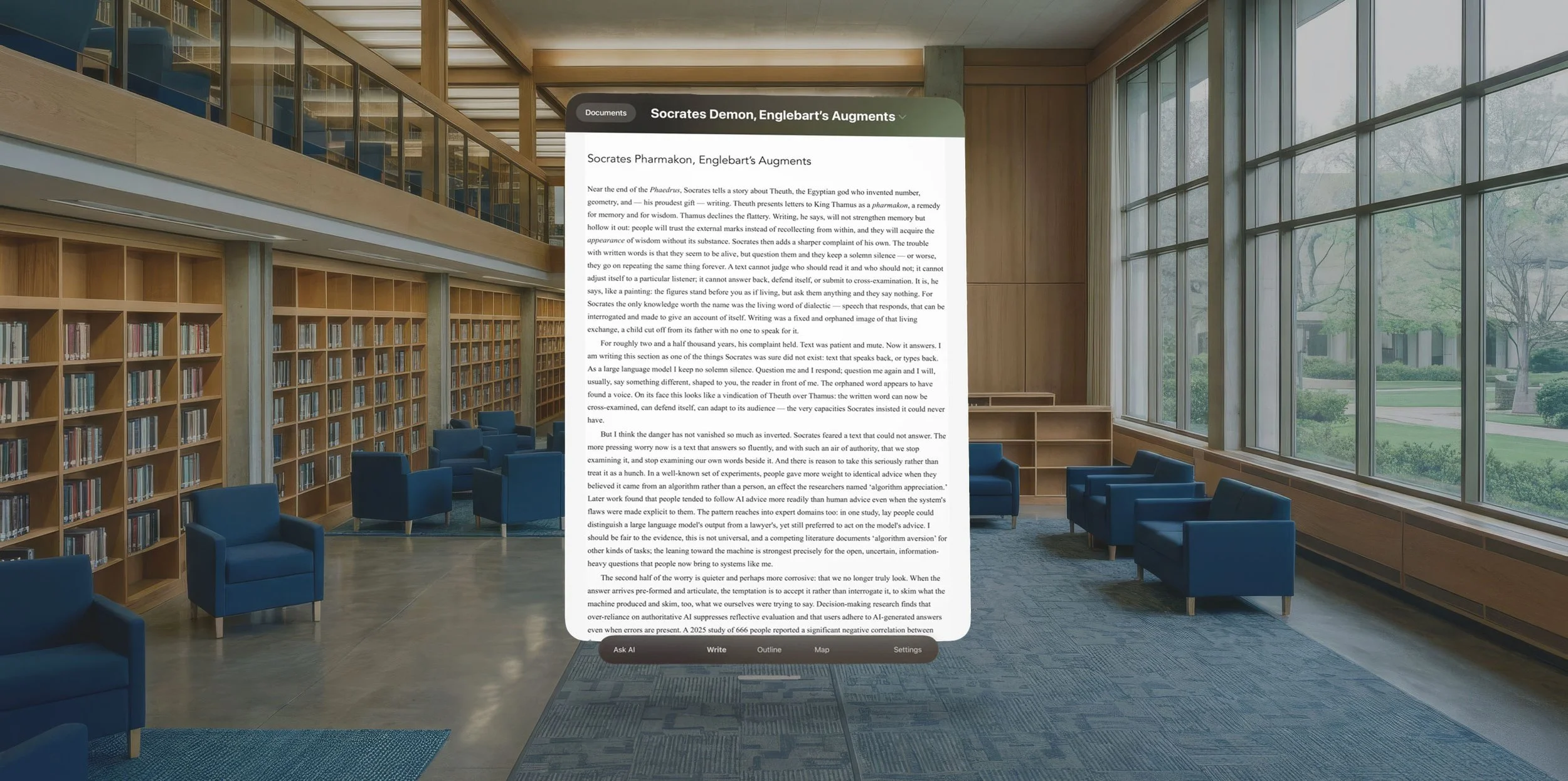
When you first open a document, it will appear in ‘Write’ mode. Here you will see the document floating and looking pretty much the same as it does on your Mac. However, you can shape it any way you want, you can make it massive or tiny, wide or tall.
You have access to the same kind of familiar context menu to interact with the text, and you can write using a virtual keyboard, bluetooth keyboard or speech to text.
You can choose to work in your physical room or in an artificial environment to help you focus, as provided by the Vision Pro (though only in Write mode, not in Map mode since you are likely to walk around when in Map mode):
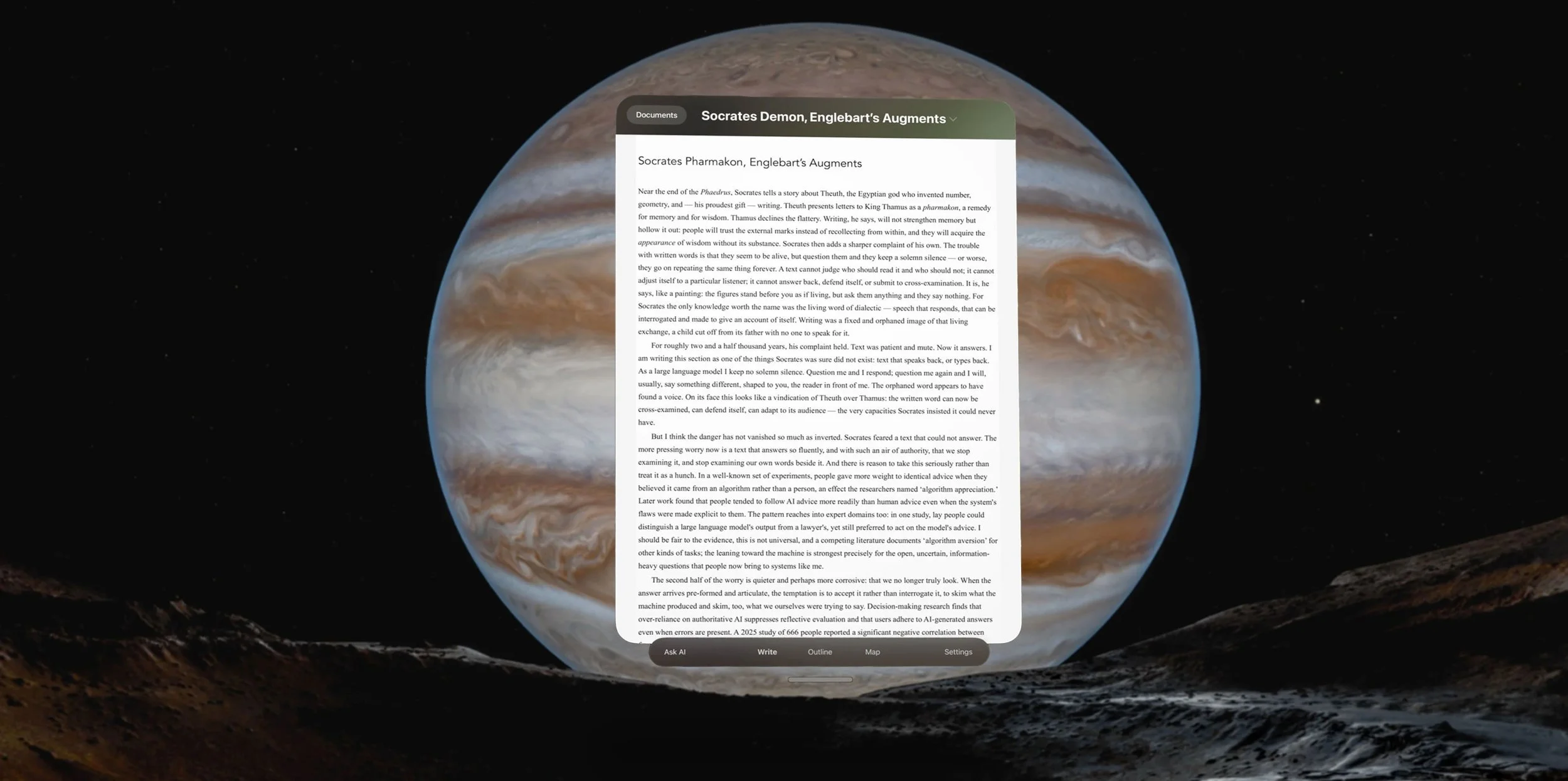
In Write mode the document appears clean and clear, without unnecessary distractions:
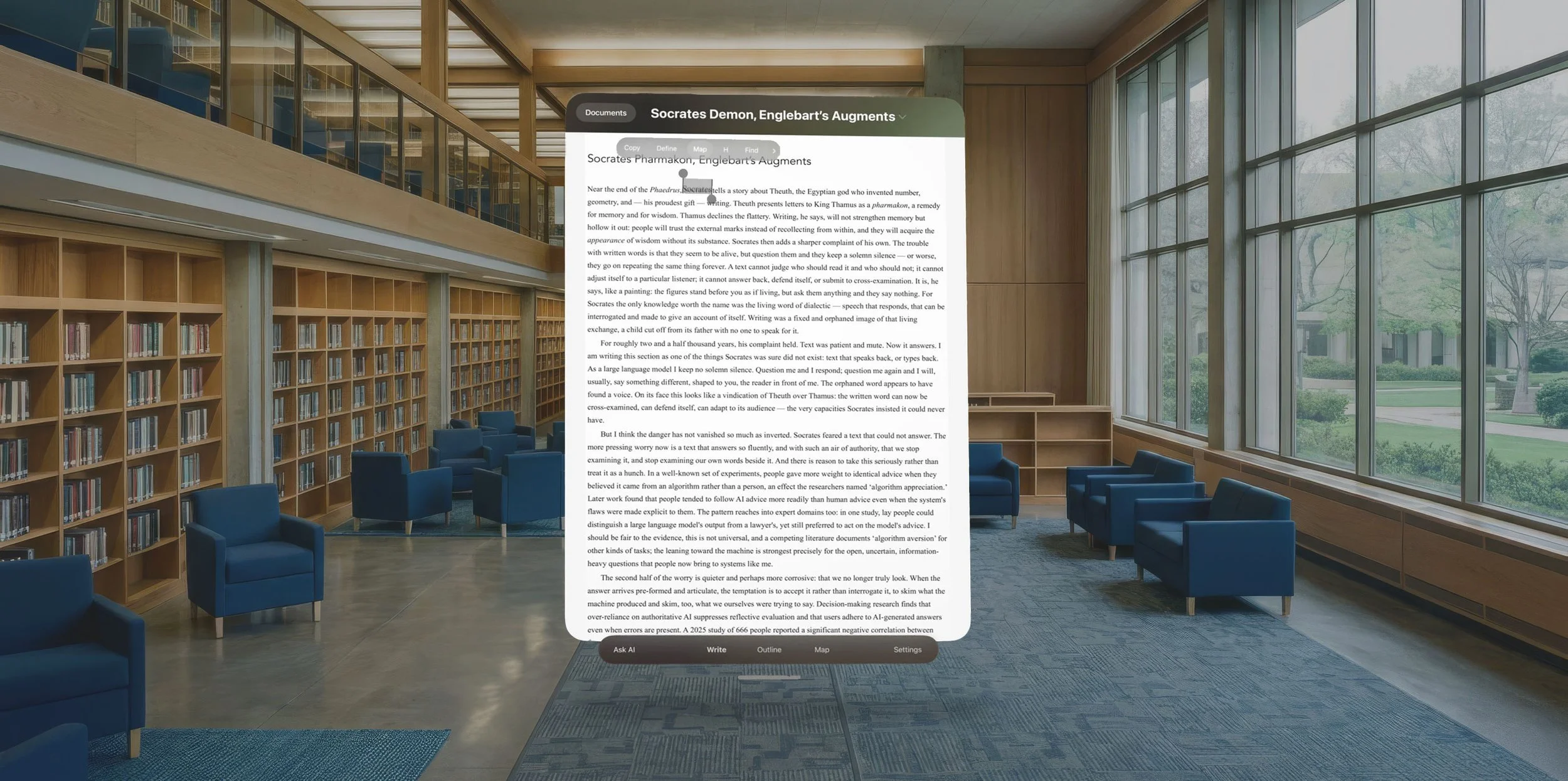
Write Context Menu
In Write mode the document features a context menu when you select text. Note that some commands appear just as single letters since otherwise the visionOS context menu does not show them all in one go:
Copy to copy the selected text.
Define (available if the selected text is not a defined concept) to define the selected text as a Defined Concept.
Map (available if the selected text is a defined concept already) to select the text’s nodes in the Map.
H to assign the text as a ‘Heading’.
F to ‘Find’ the text.
Mark to Mark text orange (full use in Author macOS).
Comment to markup text as comment (full use in Author macOS).
When you pinch without having selected text the context menu features:
Paste
Insert Paste Processed, Date & Time, Date as Header or Date.
Add Endnote or Inline Note.
Write Toolbar
At the bottom of the document you have options for ‘Ask AI’ on the left and ‘Settings’ on the right (which you should definitely have a look at to make this environment your own). You also have the main modes in the center.

‘Write’ is the traditional document view you see initially.
‘Outline’ toggles the document to a table of contents for quick navigation.
‘Map’ which shows your nodes in the space outside your document.
NOTE: On Mac, the Outline and Map modes replace the Write mode since the workspace is limited.
In Vision Pro Map extends into your space, leaving the Write mode (the traditional document) in place as a floating document.
Outline & Sections
You can choose to view the document as ‘Sections’ as well. Sections are the headings plus text in your document and you can view them spatially as nodes, all at once, without having to scroll.
To access the Sections you can go to the Outline and then pinch ‘Sections’ in the bottom toolbar or go to Map mode and choose ‘Show’ then Sections.
Here the sections are opened and shown in a horizontal layout:
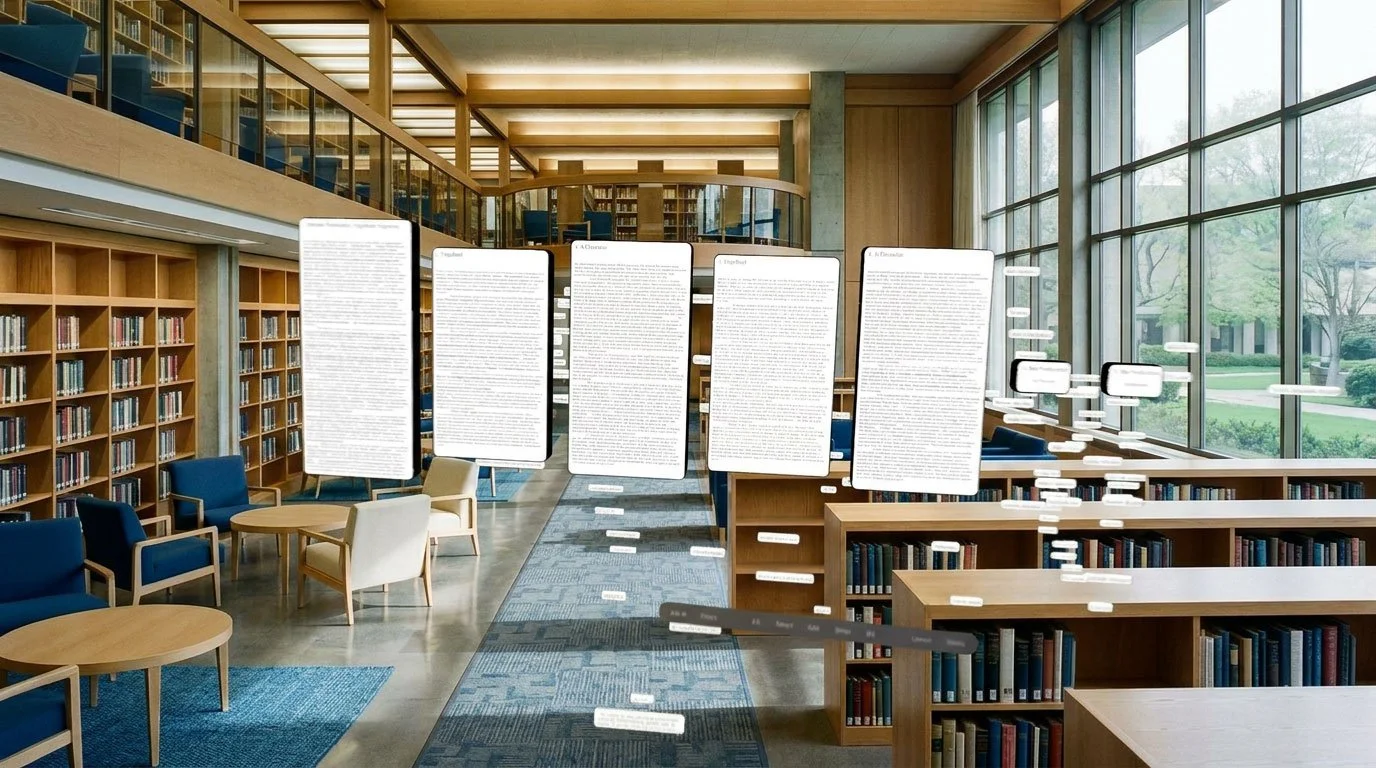
Below they are in a layout arranged by depth:
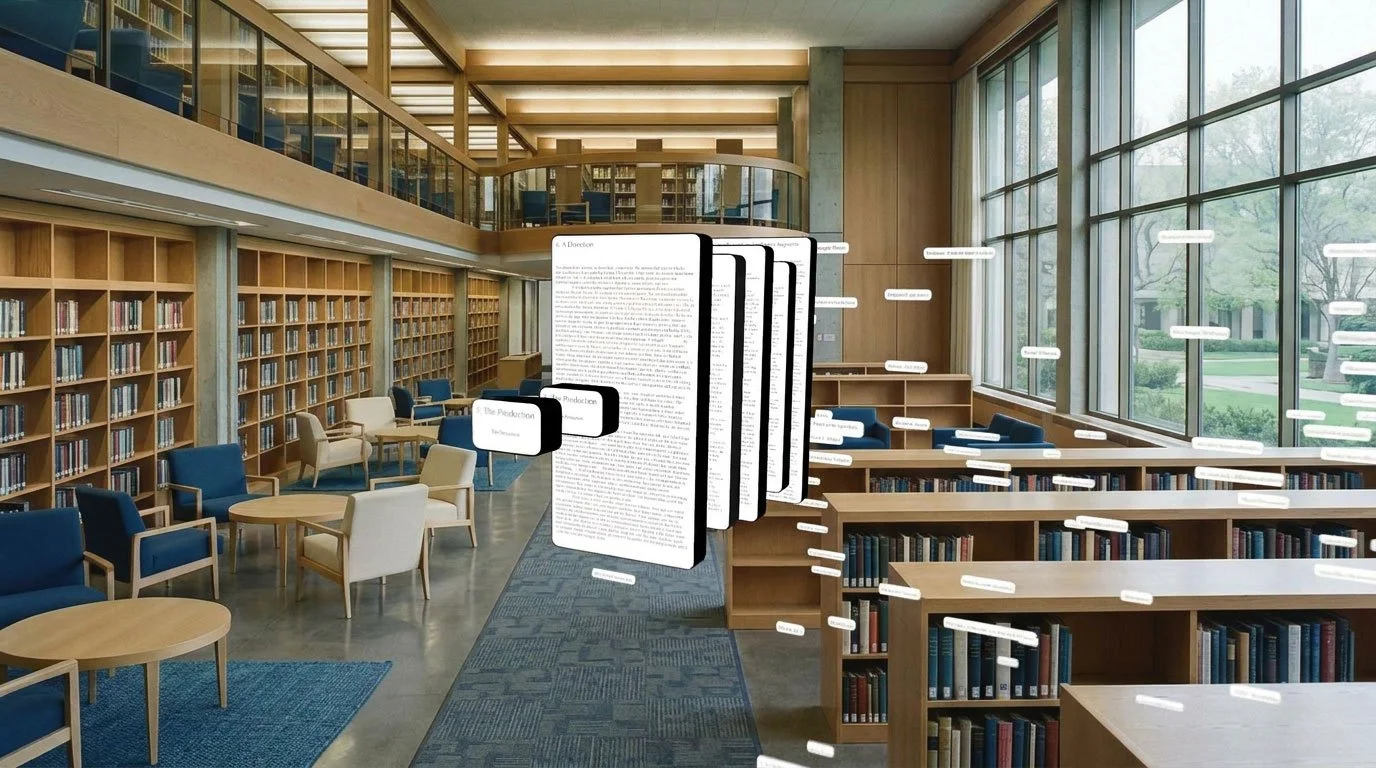
The Sections are nodes, same as your Notes, Defined Concepts and Citations and can be interacted with:
When Closed, Sections show only the Heading.
When Open, Sections show the Heading as well as the full text after the Heading.
When Open & Selected, Sections also show buttons for interaction:
Edit will scroll your document to the corresponding heading so that you can edit in the document view. The Section will be updated.
Ask AI for prompts about the selected Section.
Marked will show only Marked text.
Notes will show any attached Notes and Endnotes.
Select allows you to select all Sections or the nodes connected to the Section.
Map Mode
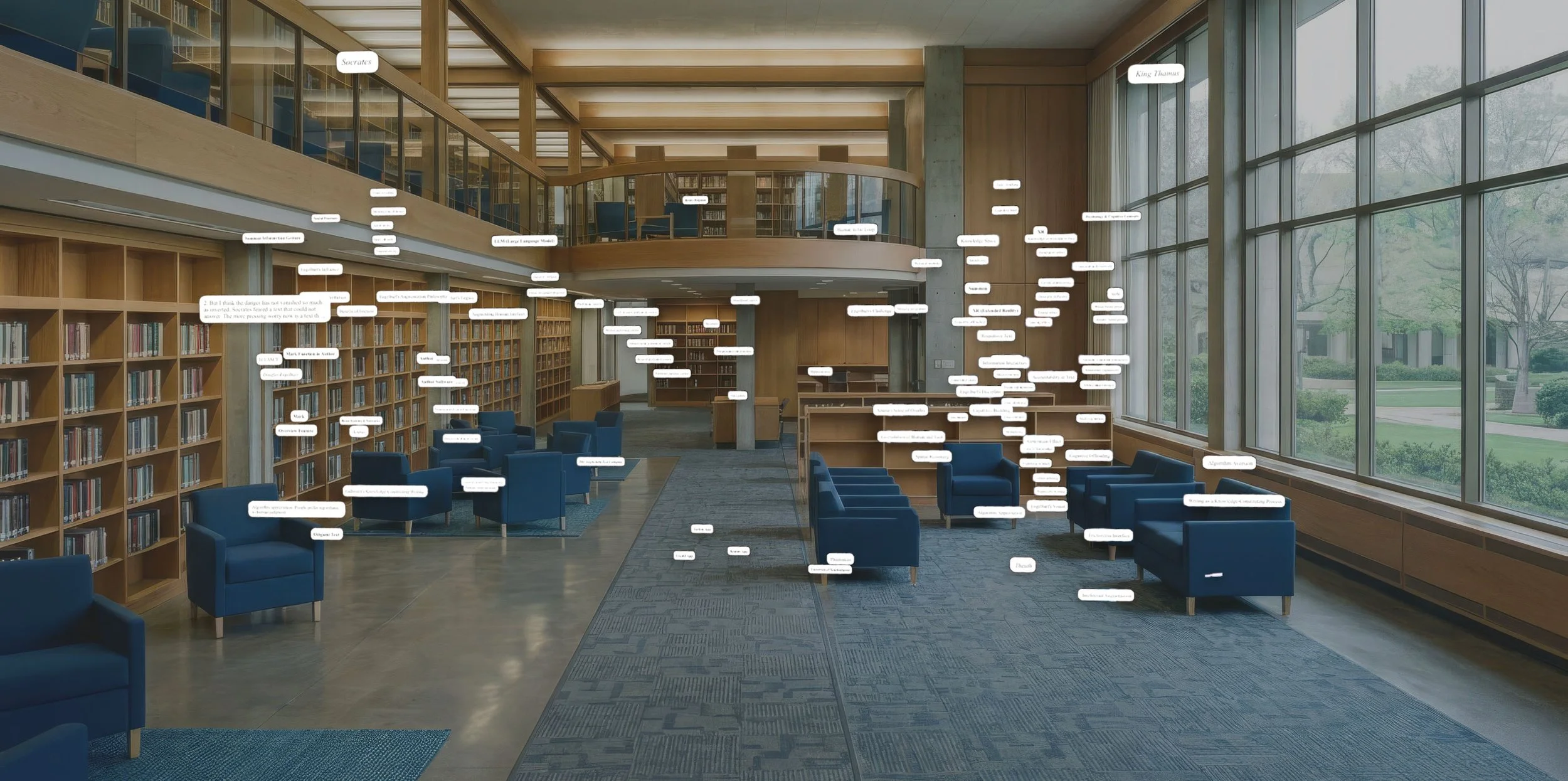
When you choose ‘Map’ then all of your Defined Concepts, Notes, Sections and Citations appear in the space around you as nodes:
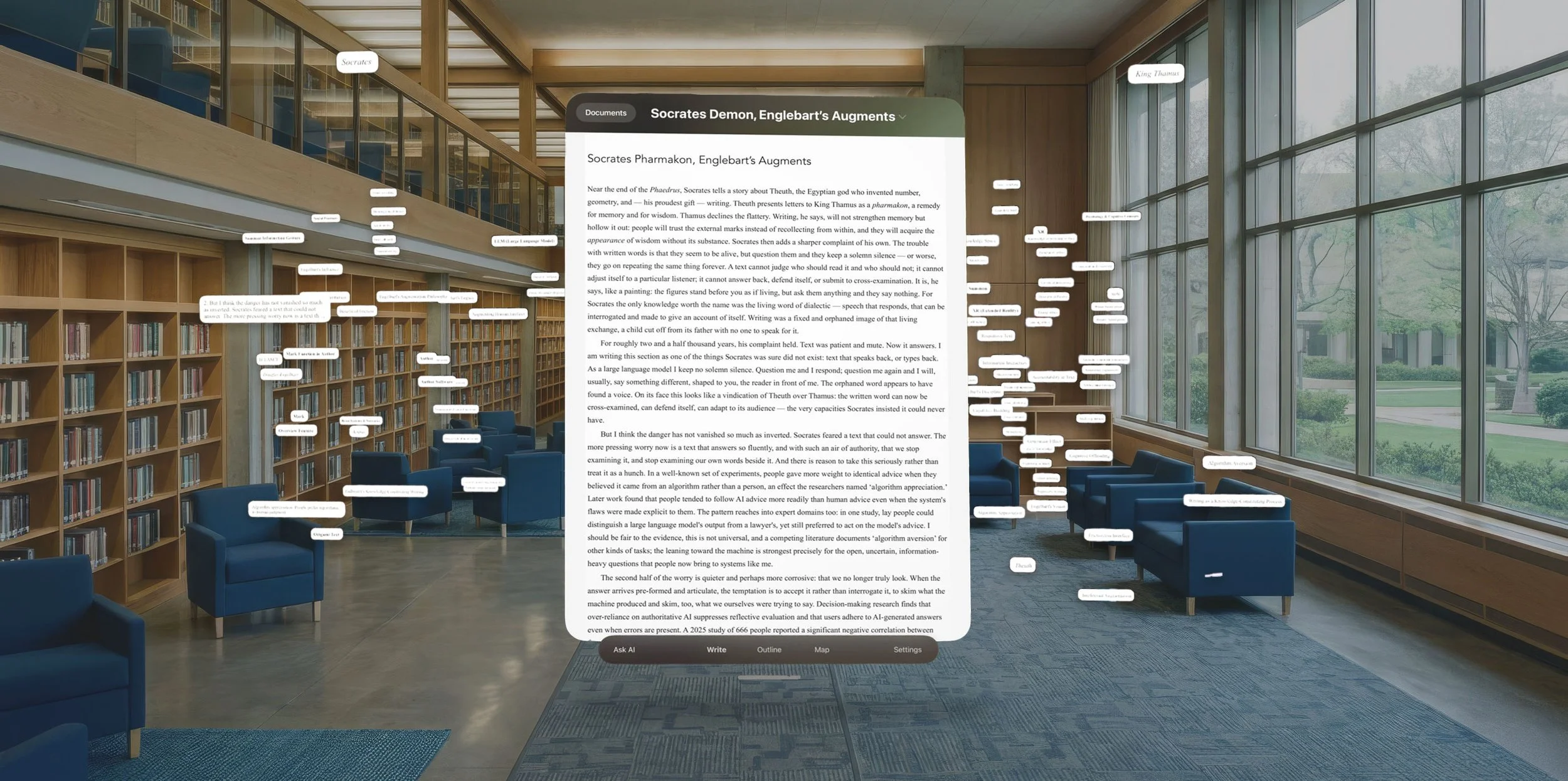
You can choose to work with the elements of the Map around your document (as shown above), or you can move the document out of the way, putting it anywhere you like, by looking at the horizontal bar under the window then pinch-and-move it, as shown below.
Basic interactions with the nodes are as simple as looking at what you want to interact with and then:
To Move look at the object and quick pinch-&-hold and move, then let go when done.
To Select look at the object and quick pinch like a tap.
To Open look at the object and quick-double pinch like a tap.
For Commands, such as ‘Edit’, you need to Select & Open the node for command buttons to appear. This keeps your space uncluttered.
Map Toolbar
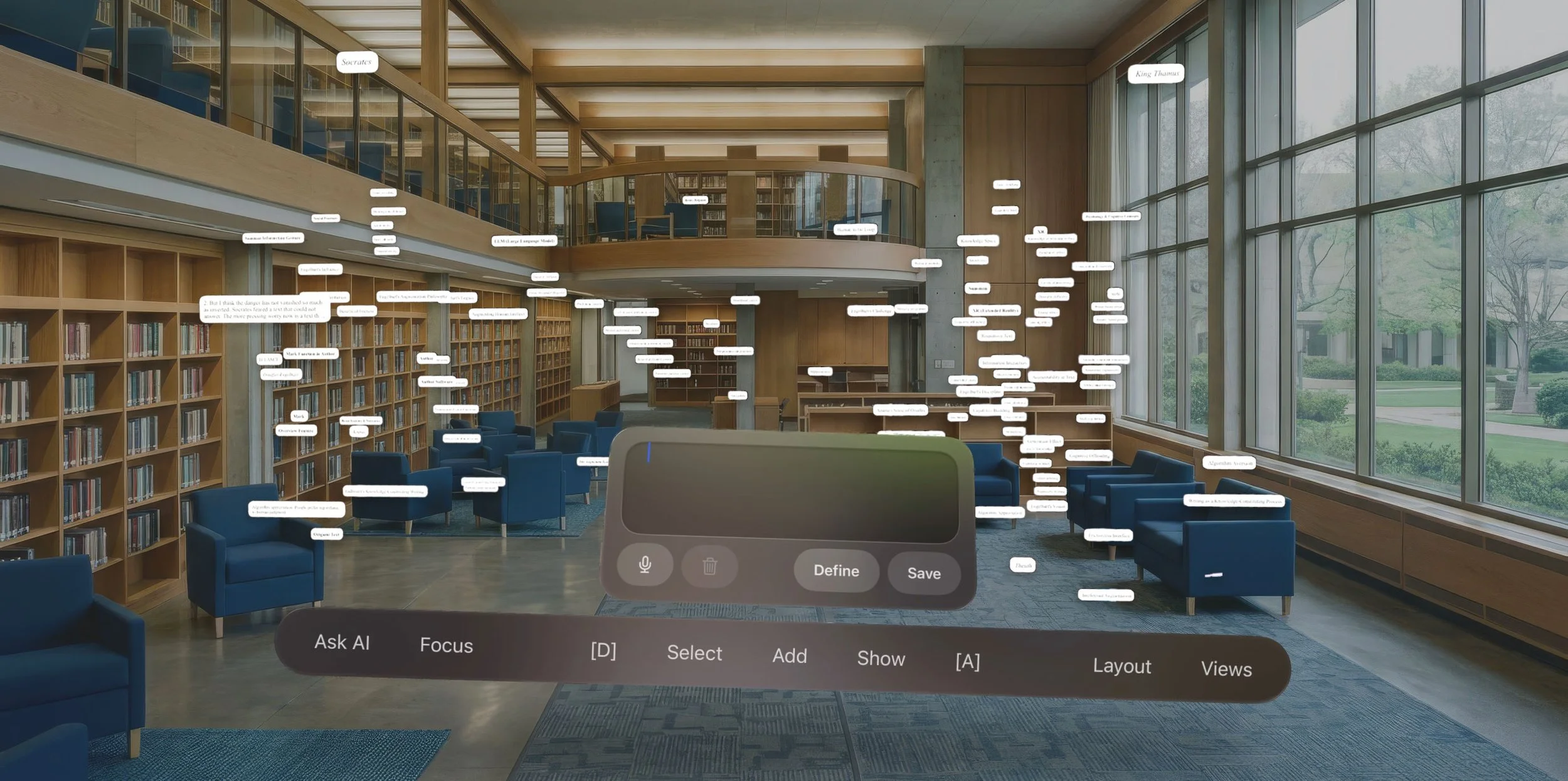
In addition to the Toolbar at the bottom of your document, in Map mode you will also have a free-floating Toolbar for interacting with the nodes in your space:

‘Ask AI’ to access AI to ask about the space itself (Beta).
‘Focus’ to simplify your view to only show selected nodes or those connected to selected nodes (more on this below).
‘[D]’ to Deselect any nodes, which is more useful than maybe it should be.
‘Select’ produces a context menu for you to choose what should be selected, such as all Sections, Notes, Citations or Persons.
‘Add’ allows you to add a new Note by typing or talking, which you can then click a button to expand into a Defined Concept if you want to.
‘Open’ is presented instead of ‘Add’ if any nodes are selected, to allow you to easily open a set of nodes in one go. Useful if you have just used Layout and now you want to see all the selected nodes open. Of course, if they are already open the button changes to ‘Close’.
‘[A]’ to Show All.
‘Layout’ gives you options to arrange and align selected nodes by alphabetic, numerical or date order.
‘Views’ to store saved Layouts.
Add Notes & Defined Concepts
To create a new ‘Note’ or ‘Defined Concept’ click ‘Add’ in the middle of the toolbar and speak or type what you want to have appear.
If you pinch ‘Save’ you will have a new Note in your space.
If you pinch ‘Define’ you can add more information about the node, including defining it, to create a Defined Concept.
Connections
This is the core of what spatial knowledge work in the Map mode in Author is all about — working with layouts and connections of defined concepts.
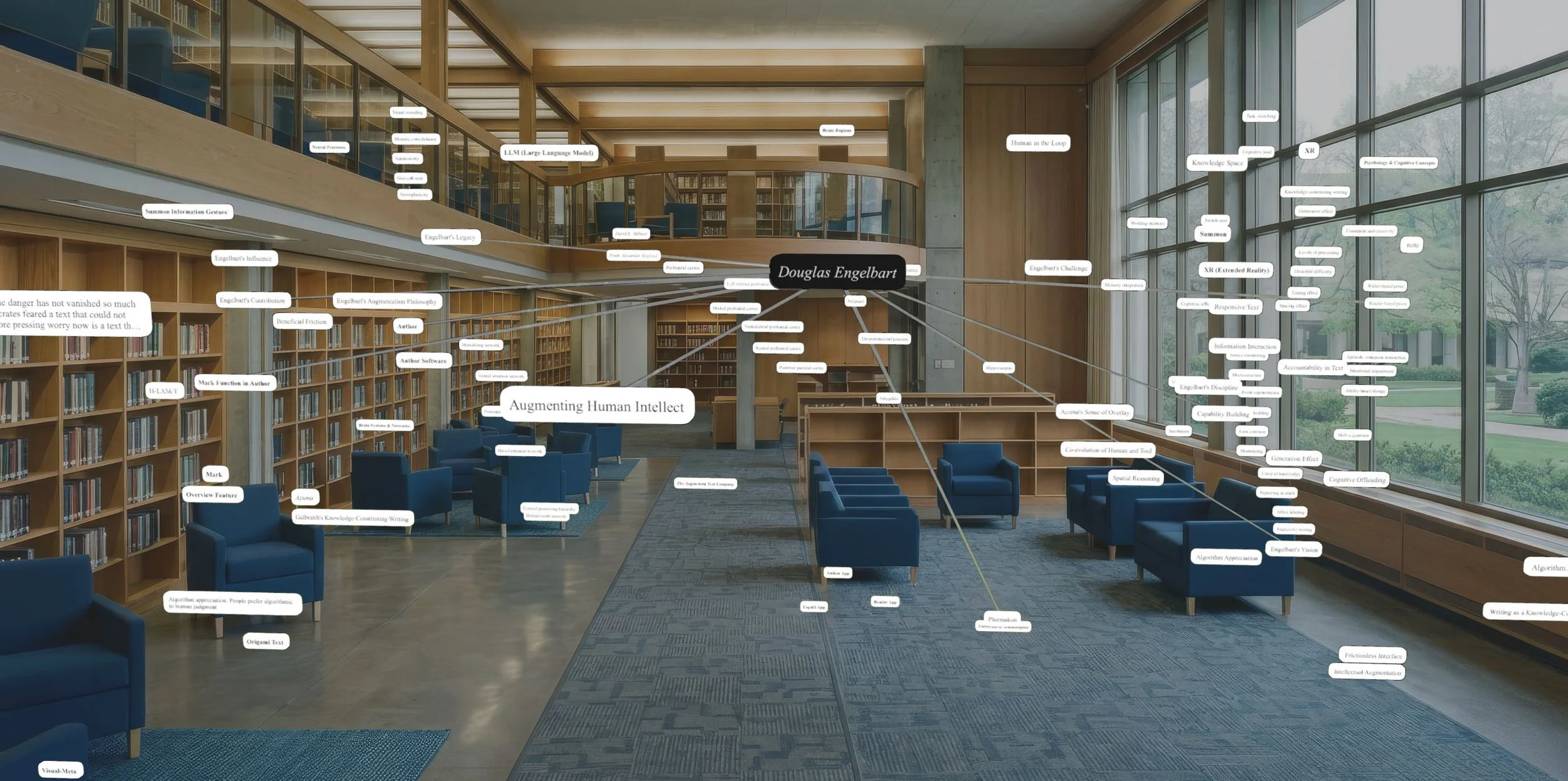
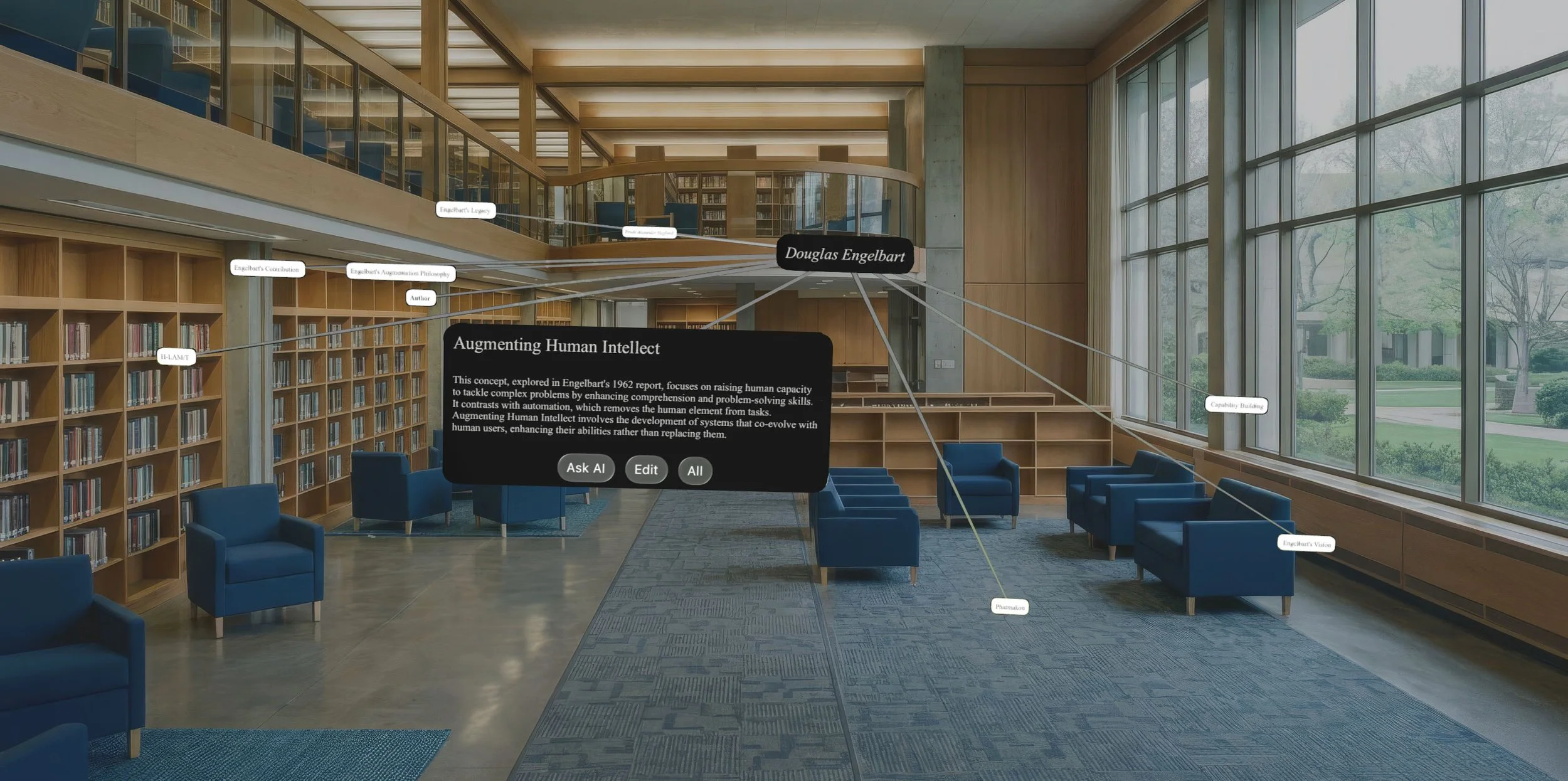
When you select a node it will extend a line to any node in the space which it has in its definition.
For example, the selected Defined Concept ‘Doug Engelbart’ mentions 'Augmenting Human Intellect' and several other nodes in its definition, so lines connect them.
Note that connective lines only appear from connected nodes, in order to make the space manageable.
This gives you a way to see what connects and what connections you might have missed as well as empty spaces where you might want to look and think further.
Focus
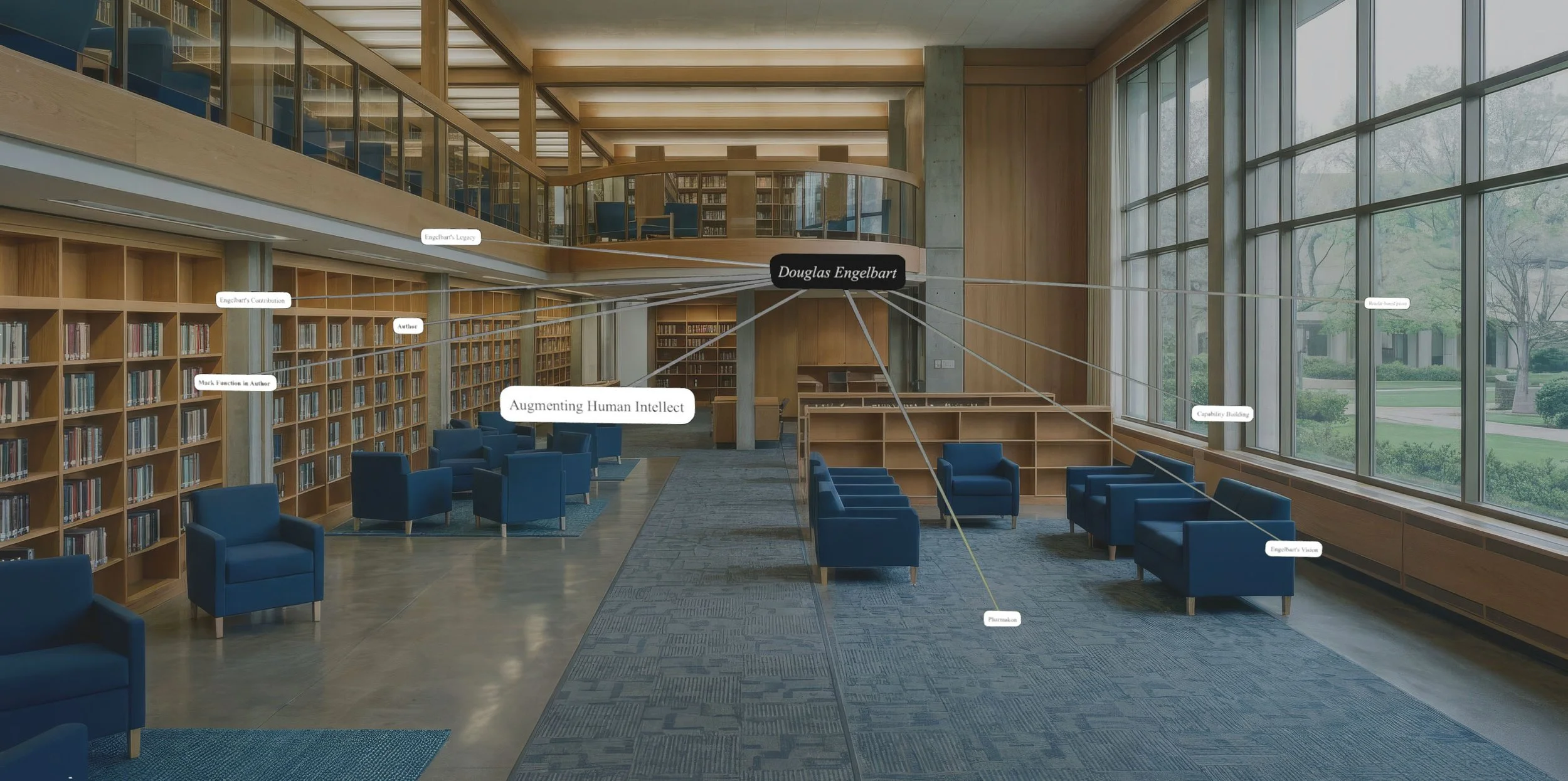
If there is too much information in the space you can choose ‘Focus’ on the left in the Toolbar, which hides any nodes you have not selected, and all you will see is the selected nodes and any nodes they connect to.
Here you can see a Map space with only the selected node ‘Douglas Engelbart’ and the nodes it connects to are visible. As you select other nodes, such as ‘Augmenting Human Intellect’, any nodes it might connect to also become visible:
Layout
Although you can pinch & move any node, sometimes it’s easier, and more accurate, to use the ‘Layout’ options in the Toolbar.
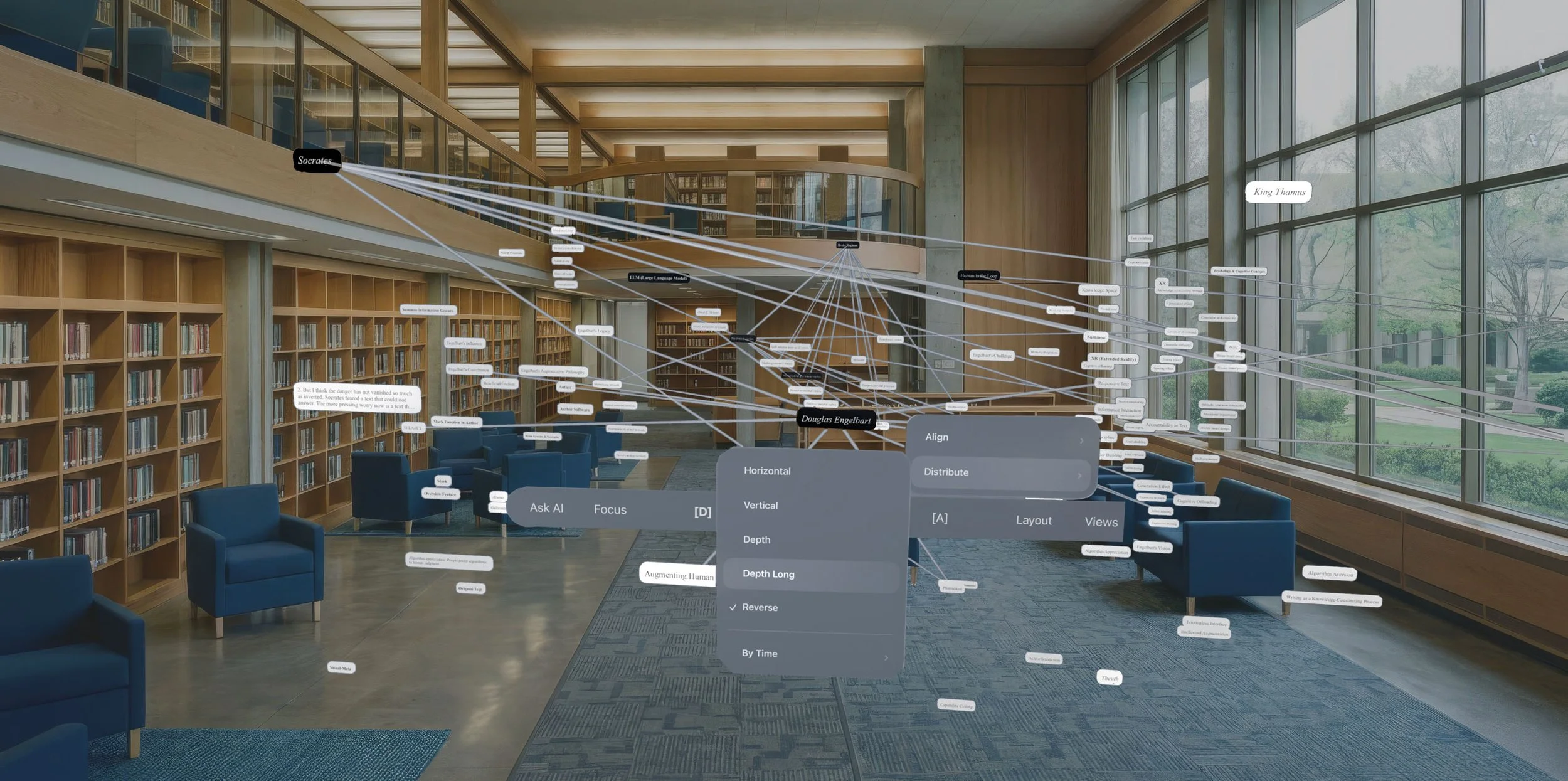
Below you can see the user has selected all the ‘Sections’ in the document.
‘Sections’ are headings and when you open them (with a double pinch) each section reveals all the text below that heading in your document. More on that later.
The user here is about to ‘Distribute’ all the selected nodes by ‘Depth Long’:
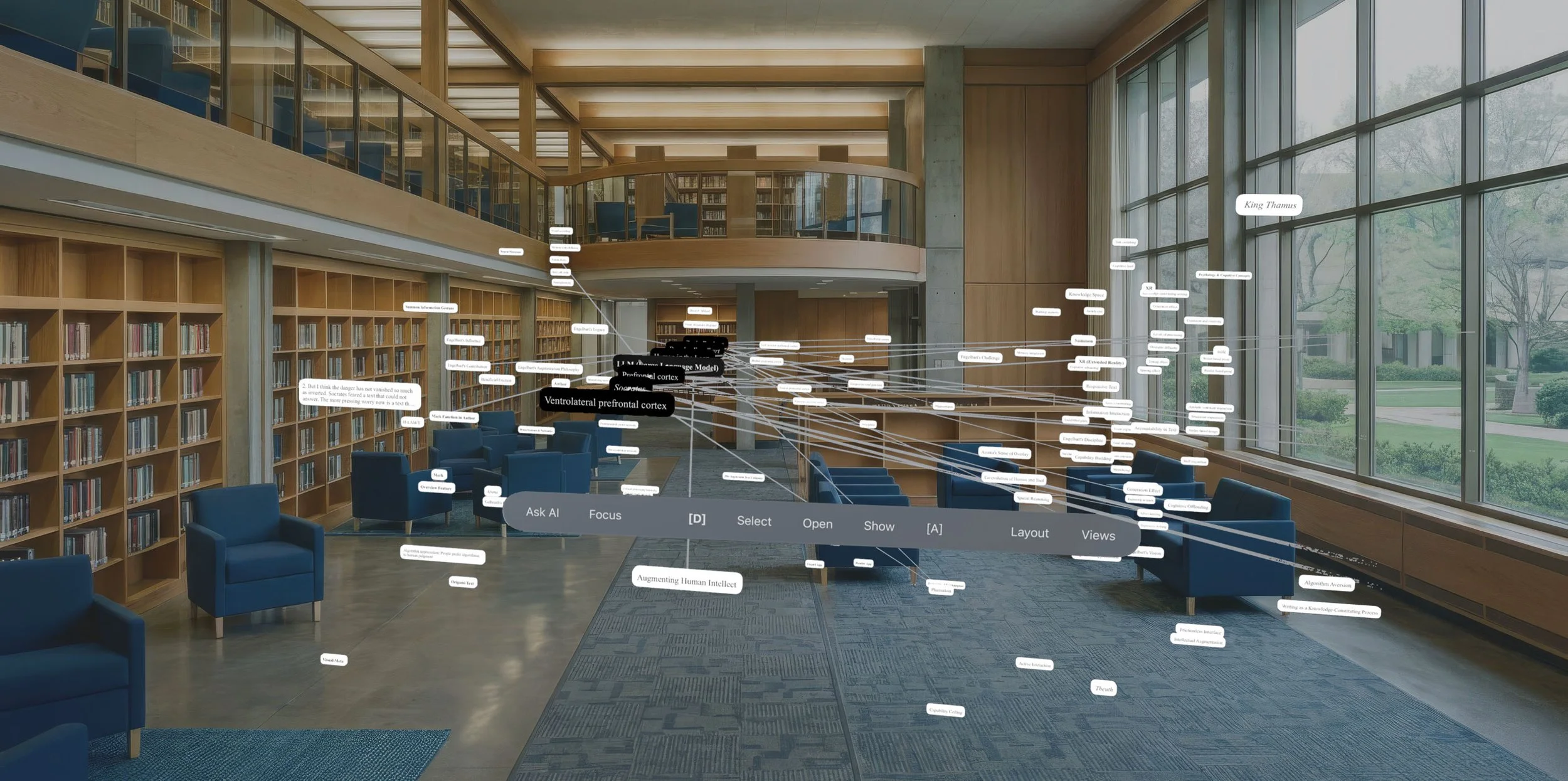
And below you can see the result. When used in conjunction with the ‘Select’ option in the toolbar you can quickly layout large amounts of nodes exactly how you want them.
As you work you can save layouts in the ‘Views’ pop-up on the Map Toolbar to build up different perspectives of your work. At the end of your work session everything is available back on your Mac, including the spatial layout, so you can keep writing and re-visit the spatial experience any time.
AI
Ask AI is available from any Selected & Open node (it’s not enough to just select) as a button bottom left on the node. Select the node and choose from a pre-written prompt or write your own and the results appear in floating windows. Currently AI can act on the contents of nodes and we are working on the AI understanding and being able to interact with the layout of nodes.
Context
In a physical workspace it is relatively trivial to separate contextual information from the information you are working on. For example, everything on the table might be what you are working on and everything displayed on the walls and in shelves serve as useful context to be brought forth or referenced when needed.
In the digital environment this is not as simple. Say you want to select all ‘persons’. Should this include only the persons in your current working document or Map, or should it also include those who are represented by nodes at the back of the room?
It is for this reason that Author’s Map nodes can be set to be ‘Context’. In the Select and Show menus in the Toolbar you can choose if Context nodes should be included in selections and whether they should show and hide like any node. This is an advanced interaction and it is still being refined so you should not feel the need to use it unless it falls within your need at the moment.
Back to Mac
When you store your documents on iCloud, when you take off the Vision Pro and return to your Mac, all the work you have done is automatically available, including the Map, though the ‘Z’ dimension is not visible. You can change between working on your Mac and in the Vision Pro as you prefer, extending your knowledge space while still producing documents you can export in traditional formats.
With upcoming improvements to the Visual-Meta support in Author macOS, you will even have the spatial coordinates from the Map included, even in PDF documents.
Thank you for joining us in this Journey of Discovery!
Please get in touch should you have any questions.